
Recently, I had to help a colleague convert a 30-page document from PDF to Microsoft Word format.
They are still manually modifying policy-related documents and not utilizing centralized policy hubs.
Fortunately, we have a yearly subscription to Adobe Creative Cloud, which allows us to use Acrobat Pro DC.
With Acrobat Pro DC, the PDF document could be converted easily without any problems.
Without a doubt, Acrobat Pro DC seems to be the perfect and best tool you’ll need for everything you need to manage PDF files.
5-time winner by PC Magazine as the best PDF tool to convert, sign, and send documents on any device.
With great features, one can only expect the price tag to be at its price level – $240 a year.
If your organization deals with way too many documents that require you to edit and manage heaps of PDF documents, Acrobat Pro is an important tool your business can’t live without.
But what if your organization just requires the occasional need to add text to a PDF file or simply to convert into Word, Excel or Powerpoint format?
Does investing $240 make any business sense?
Assuming you’ll only need to convert a PDF file once a month, with Acrobat DC, the one-time conversion will cost $20.
If you’re in this situation where there is just the occasional need to deal with PDF files, here’s a solution.

The cost-effective alternative to Acrobat DC
Introducing PDF Expert (PDFE) with a free download option.
To compare the price between PDFE and Acrobat DC ($240 / year), obviously, PDFE is the clear winner thanks to its one-time purchase/investment.
What about the features of PDFE? Any good compared to Acrobat DC?
As the pioneer in PDF technology, surely Acrobat DC has advanced capabilities such as:
- e-Signing capabilities that meet signature regulations
- Create da igital form-filling and signing experience
- Commenting tools to draw/annotate on top of PDFs
But if you’re looking for the common features, such as those related to PDF conversion capabilities, PDFE is able to match Acrobat DC just fine.
PDFE features
Basically, with PDFE, you can convert pdf to just about any editable format.

- Convert PDF to Word
- Convert PDF to Excel
- Convert PDF to CSV
- Convert PDF to PowerPoint
- Convert PDF to Publisher
- Convert PDF to OpenOffice
- Convert PDF to HTML
- Convert PDF to AutoCAD
- Convert PDF to Text
- Convert PDF to Images
The installation process did take a while but once it’s installed, I tried converting a few PDF files to Word and was impressed by the speed it took to convert a 20-pages document.
Batch PDF Converter
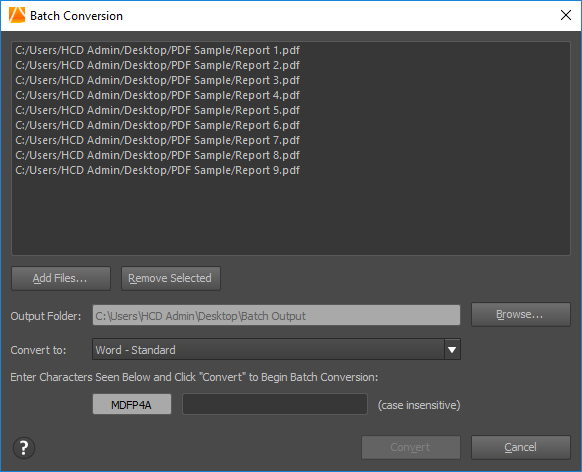 For clients who have a number of PDF reports to convert, the batch conversion function comes very handily as it’s a real time-saver.
You can basically select over 20 files for batch conversion, go make a cup of coffee and by the time you’re back, it’s all converted nicely.
In the past batch conversion used to work on native PDF files only but today, thanks to PDFE’s built-in OCR technology, scanned documents can be converted as well.
Password Protect PDF File
 You may sometimes receive a pdf file that prompts for a password before you’re allowed to view the contents.
Wondering how it’s done? It’s possible with PDFE’s security features.
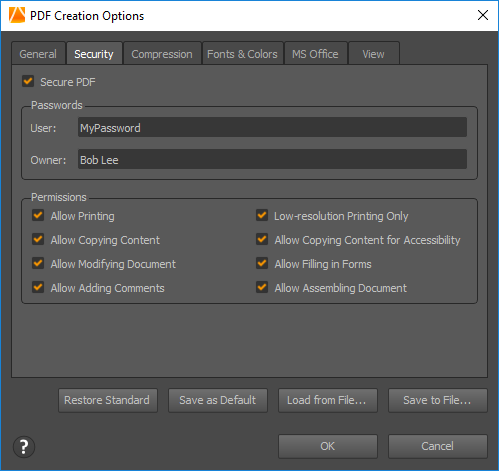
When you create a pdf from within PDFE, you may secure the pdf file by including your password so that only those who know the password is able to launch the document.
Permissions that disallow printing, copying content, modifying a document, adding comments, filling in forms, and assembling documents can also be set accordingly.
More PDF Functions
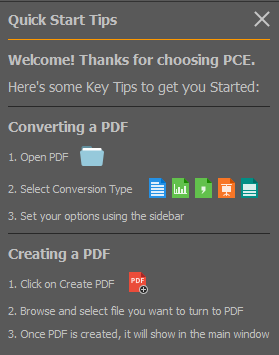
The other features worth mentioning are:
- Ability to Merge two or more PDF files
- Ability to Split PDF files
- Ability to Rotate and Resize PDF pages
In Conclusion
The user interface for PDE 5 is really simple and straightforward with standard menu structures.
In case you get lost using this simple to use tool, there is always a quick start tip together with its built-in help features.
To conclude, if you’re looking for a PDF Conversion Tool which is cost-effective.




Leave a Comment